How to Use a Free eSIM Test Qr Code When Traveling Abroad
8/30/2026
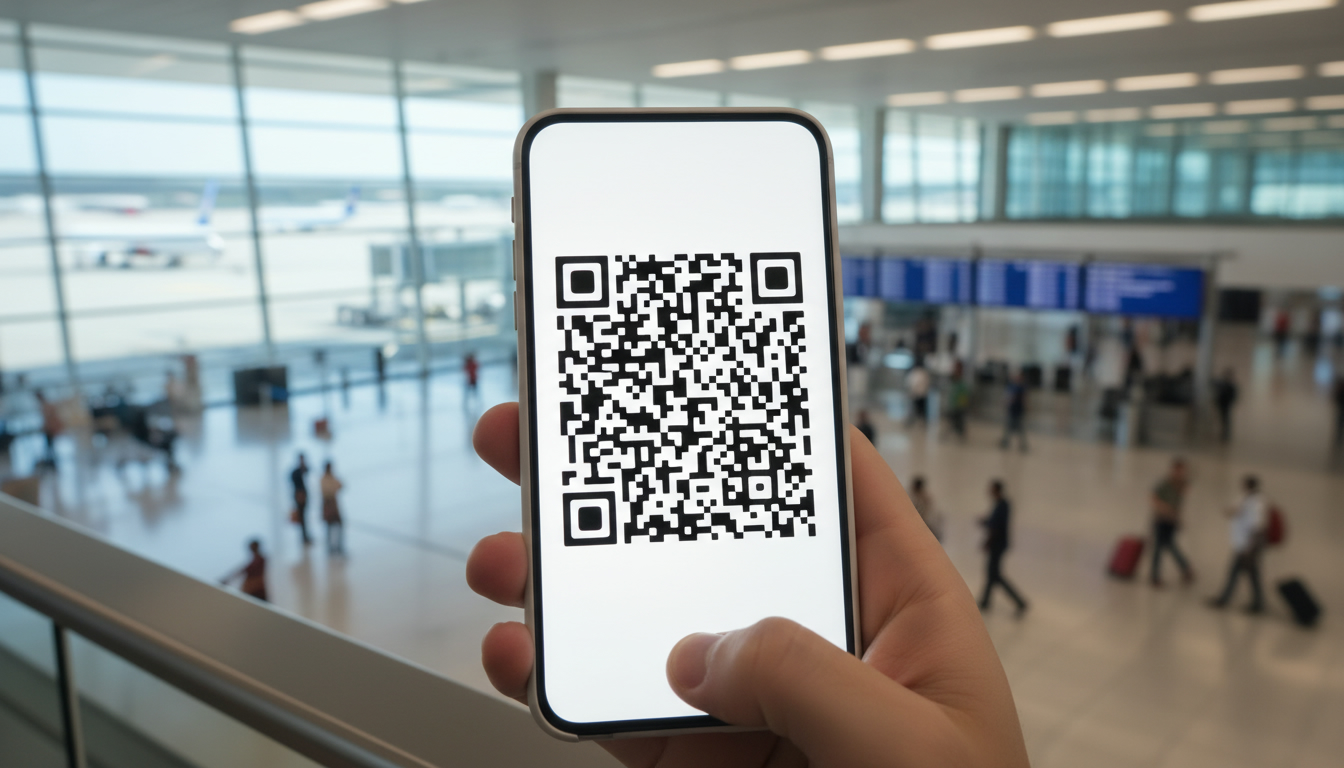
In short, what you'll discover in this article: Learn how to use a free eSIM test QR code during your travels with a practical step-by-step guide. Discover device compatibility, activation tips, common pitfalls, and troubleshooting to ensure smooth eSIM use abroad.
1. Introduction — Why Test a Free eSIM via QR Code While Traveling
Imagine you're about to embark on a trip and want to try out the convenience of an eSIM without committing to a paid plan. Testing a free eSIM test QR code offers a risk-free way to experience how eSIM activation works on your phone.
This practical guide walks you through the entire process, from scanning the QR code to troubleshooting common issues, so you can travel connected without surprises.
2. What Is an eSIM and How Does the Activation QR Code Work?
2.1 Difference Between an eSIM and a Physical SIM
An eSIM is an embedded SIM card built into your smartphone that allows you to activate cellular plans digitally without inserting a physical SIM card. Unlike traditional SIMs, it lets you switch carriers or plans instantly by downloading profiles over the air.
2.2 Role of the QR Code in Activation
The free eSIM test QR code acts as a digital key containing your carrier’s activation details. Scanning this QR code prompts your phone to download the eSIM profile and configure network settings automatically, making activation quick and hassle-free.
3. Prerequisites Before Testing
3.1 Compatible Devices (iPhone, Android) and Minimum OS Versions
Before scanning a free eSIM QR code for testing, ensure your device supports eSIM technology:
- iPhone: Models from iPhone XS and newer support eSIMs; iOS 12.1 or later is required.
- Android: Many recent models like Google Pixel 3+ and Samsung Galaxy S20+ support eSIM; Android 10+ is recommended.
Check your phone’s specifications or user manual to confirm compatibility.
3.2 Verifying Connectivity and Free Line Status
Make sure your current SIM line is active and your phone has internet access (Wi-Fi or mobile data) to download the eSIM profile after scanning the QR code. If you’re using Free Mobile’s service, verify your account status via their official support page for seamless activation (Free Mobile Support).
4. Step-by-Step Guide to Scan and Activate a Free eSIM with QR Code
4.1 Procedure on iPhone
- Open Settings.
- Tap Cellular or Mobile Data.
- Select Add Cellular Plan.
- Use your camera to scan the free eSIM test QR code.
- Follow on-screen prompts to confirm activation.
- Label your new plan if desired (e.g., “Travel Test”).
4.2 Procedure on Android
- Open Settings.
- Go to Network & Internet > Mobile Network > Advanced > Carrier or Add Carrier.
- Tap Download a SIM instead? or scan the QR code directly.
- Scan the free eSIM test QR code using your camera.
- Confirm installation and activate the plan.
4.3 Alternatives: Manual Entry of Activation Data (SM-DP+ / Activation Code)
If scanning fails, some providers allow manual input of activation details:
- Enter the SM-DP+ address (server URL).
- Input the activation code provided alongside the QR code.
This method is useful when camera scanning is problematic or for advanced users.
5. How to Verify Your eSIM Is Properly Activated
5.1 Check Network Status, Calls, SMS, and Mobile Data
Once activated:
- Look for signal bars indicating network connection.
- Make a test call or send an SMS if supported by the free plan.
- Confirm mobile data is working by browsing websites or apps.
5.2 Speed Tests and Roaming Checks (If Applicable)
Run speed tests using apps like Ookla Speedtest to evaluate data performance during travel. If roaming is enabled by your free test plan, verify connectivity in different locations.
6. Troubleshooting Common Issues
6.1 QR Code Not Recognized, Activation Errors, or Inactive eSIM
Common problems include:
- Phone camera unable to scan blurry or damaged QR codes.
- Activation errors due to expired or invalid codes.
- The eSIM profile not activating properly after download.
6.2 Solutions: Restarting, Deleting/Reinstalling Profile, Contacting Free Support
Try these fixes:
- Restart your phone and retry scanning.
- Delete any partially installed profiles via settings and rescan.
- Ensure you have stable internet during activation.
- Contact Free Mobile support if issues persist (Free Mobile Support).
7. Security and Privacy of Your eSIM QR Code
7.1 Risks of Sharing Your QR Code and Best Practices for Storage/Deletion
Your free eSIM test QR code contains sensitive activation data that could be misused if shared publicly:
- Never share your QR code on social media or untrusted platforms.
- Store it securely if you plan future tests.
- Delete downloaded profiles after testing to protect privacy.
8. Conclusion and Useful Resources
Testing a free eSIM test QR code while traveling offers hands-on experience with modern mobile connectivity without upfront costs or commitments. By following this step-by-step guide—from device compatibility checks through troubleshooting—you can confidently explore how an eSIM works on your smartphone abroad.
For more detailed instructions on applying discounts when purchasing travel data plans, check out our guide on how to use an eSIM promo code. Also consider verified discount codes from providers like BNESIM or Holafly available via MyBestSim for affordable travel connectivity options.
Stay connected effortlessly with the right tools and knowledge!
Affiliate links included for trusted providers offering travel data plans at discounted rates.
FAQ
How do I scan a free eSIM test QR code on iPhone?
On iPhone, go to Settings, tap Cellular or Mobile Data, then Add Cellular Plan. Use your camera to scan the free eSIM test QR code and follow the prompts to activate the plan. Label it if you want for easy identification.
Which devices support free eSIM test QR code activation?
Most iPhones from XS onward with iOS 12.1+ and Android phones like Google Pixel 3+ or Samsung Galaxy S20+ with Android 10+ support eSIM activation via QR codes. Check your device specs to confirm compatibility before testing.
What should I do if my phone won’t scan the eSIM QR code?
If scanning fails, try restarting your phone and ensuring good lighting. You can also manually enter the SM-DP+ address and activation code if provided. Deleting any partial profiles and stable internet access can help resolve activation errors.
How can I verify my free eSIM test is working correctly?
After activation, check for signal bars and try making a test call or sending an SMS if supported. Confirm mobile data works by browsing websites or running speed tests. If roaming is enabled, test connectivity in different locations.
Is it safe to share my free eSIM test QR code with others?
No, your free eSIM test QR code contains sensitive activation data. Sharing it publicly can risk misuse. Store it securely if needed and delete the eSIM profile after testing to protect your privacy and prevent unauthorized use.

Hannah Muller
Hannah is a travel-savings writer. At eSIM Coupon Code she tracks verified eSIM coupons so travellers pay less for mobile data worldwide.